Posts

ICS Credential Storage Implementation

In the previous entry , we looked at how the new ICS KeyChain API is used and tried installing a user private key/certificate pair and a CA certificate. Now we'll will try to find out where  they are actually stored and how they are protected. Looking at  frameworks/base/keystore/java/android/security , we notice several interesting classes that are not mentioned in the SDK documentation. The most promising is the KeyStore class, so let's have a look. Sure enough, it is marked as hidden (using the dreaded @hide comment). It does have methods for interacting with the key store ( get() , put() , delete() , reset() , etc.), but where is the actual key store? As it turns out, all methods send command to a local socket aptly named 'keystore'. With a little creative grepping, we find out that there is native daemon with the same name listening on that socket. The source is in frameworks/base/cmds/keystore/keystore.cpp , so let's have a look. The file has some helpful ...

Using the ICS KeyChain API

Image
Update: Sample app code is now available on github . The recently released Android 4.0 (Ice Cream Sandwich, ICS) introduces a new, unified UI for both tablets and handsets, lots of 'people-centric' communication and sharing features and other convenient improvements such as a better camera app and the much-hyped face unlock. Since everyone is talking about those, we will have a look at some of the less-user visible, but nonetheless important security-related improvements. Android is often said to be missing crucial security features to be seriously accepted in the corporate world, which has long been the  domain of RIM's BlackBerry. Two of those missing features were the ability to control the system's trusted CA certificates and offer a centralized secure credential storage. Since many companies use private PKI's, the ability to install trusted certificates system-wide is essential for using corporate services secured by those PKI's. Until now, the only wa...

Kanji Recognizer v2.0

Image
It's been a while since the last release, but the latest version is finally available . The focus of this release is an improved new UI and full support for tablets. The app is now using an action bar for easier access to key functionality .  This is a feature originally only available on the Honeycomb (3.x) and Ice Cream Sandwich (4.0) Android versions, but Kanji Recognizer uses the excellent ActionBarSherlock  library to bring ot bar to previous versions as well. Functions that were previously only accessible via the overflow menu (displayed when you press the menu key), now have an icon on the action bar. That will hopefully make it easier for new users to find and try them. Here's how the main screen looks in version 2.0: The three icons on the right side of the action bar start the quiz, character search and history/favorites screens, respectively. Less frequently used features, such as the Settings and About screens are still in the overflow menu,  ...

WWWJDIC for Android 2.1 Released

Image
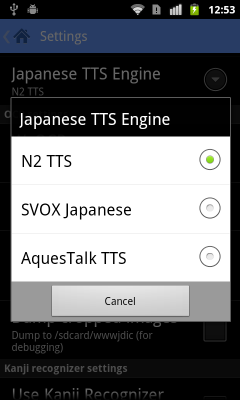
The newest release is now live in the  Android Market . The highlights of this version are improved Japanese text-to-speech (TTS) and Android 4.0 (Ice Cream Sandwich, ICS) support. Version 2.0 introduced Japanese TTS support using the free N2 TTS speech engine, but apparently (and unfortunately) it is not available from the Android Market outside of Japan. In 2.1 I've added support for two other major Japanese TTS engines:  SVOX Japanese  and  AquesTalk TTS . You can now switch the Japanese TTS engine in the Settings screen, check out the screenshot below. The app doesn't check if the engine is actually installed, so you should install the relevant TTS package before changing the setting (if you select an engine that is not available, Japanese TTS support will be disabled throughout the app). Another improvement in this release: the settings screen is now using an action bar, courtesy of  ActionBarSherlock  v3.4.0. Unfortunately, an API to list ava...

WWWJDIC for Android 2.0

Image
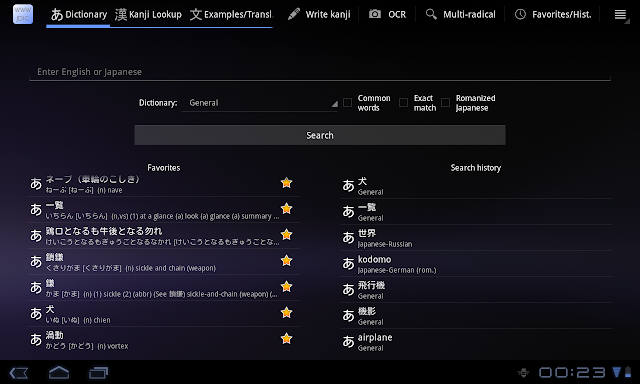
More than a year and a half since the initial release to the Android Market, WWWJDIC for Android's second major version update is now live. It brings a refreshed UI for phones, a fully optimized and easier to use interface for tablets, and one of the most often requested features -- Japanese text-to-speech. Get it now from the Market  and read about what's new and improved below. First thing, first: tablets. The tablet-optimized version of Android, Honeycomb, was released early this year, but affordable Android tablets are just now getting mainstream. The biggest user visible changes are the introduction of the action bar on the top, and the fixed system bar with soft back and home buttons at the bottom of the screen. And, of course, the obviously larger screen. To take advantage of those, Honeycomb apps move previously hard to find option menus to the easily accessible action bar, and display more information when more screen real estate is available. Here's how the main...

WWWJDIC for Android 1.8.7 Released

Image
The latest version is now available in the Android Market  and soon in the Amazon Appstore. Example search has been largely improved by using a feature recently added to  WWWJDIC 's API . While clicking on the 'Ex.' button next to a dictionary entry would only show you sentences containing the exact word before, searching for examples is a lot 'smarter' now. It now matches inflected words, alternative spellings and more. For example, searching for 飲む will match 飲んだ, as well as のまない; searching for 綺麗 will match きれい, キレイな, as well as the original 綺麗, of course. Up to 100 sentences matching the query will be returned by default. For common words, you might want to turn the 'Random examples' option in Settings on. If you do, you will get 10 random examples containing the target word each time you search, giving you a much broader view of the word's usage. Another new feature in this release is support for optical character recognition (OCR) of gallery im...

Kanji Recognizer 1.7 Released

Image
This blog post is a little late, but Kanji Recognizer 1.7 (and soon after 1.7.1) is now available in the Android Market . This release introduces two major new features: multiple character input via the Simeji mushroom, and stroke order diagrams in character details, as well as a number of improvements and bug fixes. Multiple character input has been one of the most often requested features since the introduction of Simeji mushroom support in 1.5. While you had to call Kanji Recognizer from Simeji for each character you needed to input before, now you can input a string of characters with a single invocation. After you select a character from the candidates list, it is added to the input buffer and the drawing area is automatically cleared. You can add as many characters as you want, and return the string to Simeji by pressing the green tick icon on the right. If you want to clear the buffer and start over, you can press the cross icon. As before, this is a premium feature...